Author: Ramona Chung

  • How to Read a 10-K with AI: A Source-Cited Workflow (Tested on NVIDIA’s Filing)

    I gave Claude the SEC EDGAR link to NVIDIA’s Form 10-K for the fiscal year ended January 25, 2026, and asked it to use a web-reading tool to pull out six things. One of the answers was that total revenue was “not found.”

    NVIDIA’s revenue was in the filing; the tool had not retrieved it. The other answers needed checking too.

    This post is about research method. It is not a recommendation to buy or sell NVIDIA or any other security. See the Disclaimer.

    The six questions, and the first answers

    The questions covered several parts of the filing: the business description at the front, the risk factors in the middle, and management’s discussion of results further back. They asked for the reporting segments and their revenue, total revenue for two years, any customers above 10% of revenue, the first risk factors, the China export-control charges, and gross margin.

    Here is how the first answers compared with the filing:

    QuestionFirst answerWhat the filing says
    Reporting segmentsTwo: Compute & Networking, GraphicsCorrect
    H20 export-control charge$4.5 billion in Q1 of fiscal 2026Correct (Item 1, p. 10)
    Total revenue“Not found”$215.9 billion, up 65% (Item 7, p. 37)
    Gross margin“Not found”71.1% vs. 75.0% a year earlier (Item 7, p. 37)
    Customers above 10%“Not found”; only a general statement about relying on a few partnersTwo direct customers at 22% and 14% of revenue (Item 1A, p. 23)

    In the table, the correct answers are about the front of the filing; the “not found” ones are about sections further back. The table shows five of the six requested topics; it does not include the risk-factor answer.

    What happened

    At the very end of the tool’s output was a short note: the response had used only the first 100,000 characters of the page. When I opened the same filing in a browser, the main document’s text came to about 345,000 characters. By that comparison, the answers were built from roughly the first 29% of the filing (an approximation, since the tool and the browser count characters differently), which stops partway through the risk factors. The MD&A and the financial statements were outside what that response covered.

    The answers themselves said “not found.” The coverage limit appeared only in that closing note. Read quickly, “not found” sounds like “the company does not disclose this.” For the customer question, that would have been exactly backwards.

    The same questions, with the full text

    For the second round, Claude opened the filing in a browser on my computer, which loaded the complete main-document text, and searched that text for each answer. This time every answer had to come with the figure as written, the Item, and the printed page number. Each line was checked against the filing and then re-checked independently by a second AI tool, Codex.

    FactFigure in the filingLocation
    Total revenue, fiscal 2026 vs. 2025$215,938 million vs. $130,497 million (up 65%)Item 7, p. 37
    Gross margin71.1% vs. 75.0% (down 3.9 percentage points)Item 7, p. 37
    Compute & Networking revenue$193,479 million vs. $116,193 million (up 67%)Item 7, p. 40
    Graphics revenue$22,459 million vs. $14,304 million (up 57%)Item 7, p. 40
    Customer concentrationOne direct customer 22% of revenue, another 14%Item 1A, p. 23
    Revenue from customers headquartered outside the U.S.31% of fiscal 2026 revenueItem 1A, p. 19 (definition: Item 7, p. 41)
    H20 export-control charge$4.5 billion in Q1 of fiscal 2026, for excess inventory and purchase obligationsItem 1, p. 10

    The two reported customer shares, 22% and 14%, add up to 36% of revenue. The first answer had reported them as “not found.”

    The geographic figure requires care. NVIDIA measures geographic revenue by where its direct customers are headquartered, which can differ from where products ship or who ends up using them. The 31% is accurate; it is not a measure of sales to foreign end users. The filing also gives management’s explanation for the lower gross margin, a shift in its data center offering plus the H20 charge (Item 7, p. 37). I record that as management’s view, separately from the numbers.

    The method I use now

    Start from the filing itself. Search the company on SEC EDGAR, filter for form type 10-K, and open the main document. Note the fiscal year end and filing date; NVIDIA’s fiscal year does not follow the calendar. Investor.gov’s 10-K guide (linked below) explains each Item, though parts of it predate recent SEC rule changes and it is not a complete checklist.

    Check coverage before trusting any gap. The prompt below includes these coverage checks. Two traps are worth knowing: a tool can see the table of contents, or the final page, and still miss the body text in between; and in NVIDIA’s filing, Item 8 points to financial statements elsewhere in the report, so seeing the Item 8 heading proves little. If coverage is incomplete, ask about one section at a time or upload the filing as a file.

    Require a location for every answer, then search the filing for each figure yourself. A plain Ctrl+F (Cmd+F on a Mac) can miss a number because of formatting, so confirm the value, units, period, and surrounding definition, note any unit conversions, and mark figures you cannot trace as unverified. Keep each verified fact on one line with its Item and page. I plan to use that log when next year’s 10-K comes out.

    The prompt

    Replace the bracketed parts. It works best with the full filing attached, one section at a time if necessary.

    You are helping me read [COMPANY]'s Form 10-K for the fiscal year ended [DATE].
    
    Coverage first:
    1. Tell me how much of the document you can see. Report any truncation,
       length limit, or missing section, including notes you would normally
       put at the end.
    2. Tell me the last Item heading and page number you can see in the body
       text (not the table of contents).
    3. Confirm whether you can see the actual financial statements and notes,
       not just the Item 8 heading.
    These are initial checks only. If coverage is incomplete, say so before
    answering anything else.
    
    Then answer the questions below. For every answer:
    - Give the figure exactly as written, with its units and reporting period.
    - Give the Item number and the printed page number.
    - If you cannot find it, say "not found in the part of the filing I can see,"
      not just "not found."
    - Do not estimate, round, or calculate anything I did not ask for.
    - Label management's explanations as management's view.
    
    Questions:
    [YOUR QUESTIONS]

    Test limits: this used one filing and one web-reading tool, and other tools have different limits. Page numbers are the ones printed in the HTML filing; a PDF copy may differ, and separately filed exhibits were not included. Please report errors through the Contact page.

    Sources

  • How I Connected Claude to My WordPress Blog with MCP (Without Paying for API Credits)

    I already pay for Claude and for ChatGPT Plus. When I started building this site, I wanted to use those subscriptions without paying separately for model API usage.

    What I wanted was simpler. I wanted to keep working in the Claude app I already use and have Claude reach into the site directly, to draft pages, fix menus, and check settings, without me copying text back and forth. The piece that makes that possible is MCP, the Model Context Protocol: an open standard that lets an AI assistant call tools on another system. If a WordPress site exposes an MCP server, Claude can list posts or edit a page as a structured action.

    The site at that point was a fresh install on ChemiCloud’s WordPress hosting ($77.88 for the year, on a LiteSpeed server), running the default Twenty Twenty-Five theme with nothing but sample content. I am not a developer.

    The first wall: a 404 on /wp-json/

    Early on, the site’s REST API address, /wp-json/, returned a 404 error. The cause was the permalink setting. WordPress still serves its REST API under Plain permalinks at a different URL, but Easy MCP AI, the plugin I ended up using, expects “pretty” permalinks (anything except Plain). I switched Settings › Permalinks to Post name, and the same address responded normally right away.

    Picking and installing the plugin

    I looked at three options in the WordPress plugin directory: the official MCP Adapter, AI Engine, and Easy MCP AI. I had no strong preference of my own, so I talked the choice through with the AIs and went with their recommendation. Easy MCP AI won for two practical reasons. One plugin could serve both tools I planned to use, Claude over OAuth and Codex over a token, and it provides an audit log of AI activity on the site.

    I installed it through Plugins › Add New. There was no outside account to create. The plugin runs the MCP server inside WordPress, so the address Claude connects to is the site’s own:

    https://yoursite.com/wp-json/easy-mcp-ai/v1/mcp

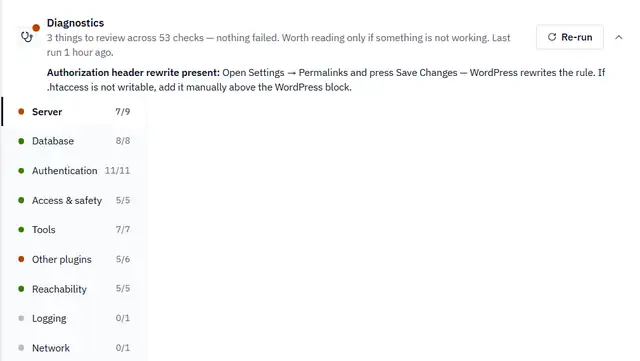
    It also has a diagnostics card. The report I captured for this screenshot listed 53 checks: 48 passed, three raised warnings, and two had not run. Nothing failed.

    Easy MCP AI Diagnostics card: three things to review across 53 checks, nothing failed. Category list shows Server 7 of 9, Other plugins 5 of 6, Logging and Network 0 of 1, all other categories fully passed.
    The plugin’s diagnostics summary on my site.

    One of those warnings is still there. It says the server rule that passes the Authorization header to WordPress is missing, which can make a valid token look invalid. The plugin’s suggested fix is to re-save the permalink settings, or to add the rule to .htaccess by hand if the file is not writable. I re-saved; the warning stayed. Both AI connections still authenticate normally, so I have left it for now and will revisit it if a valid token is ever rejected.

    Connecting Claude

    In Claude’s connector settings I added a custom connector and pasted the site’s MCP address. (The plugin also has a one-click button that pre-fills this.) Claude detected on its own that the server uses OAuth and registered itself as a client, so I left the header fields empty, saved, and clicked Connect.

    An authorization page opened on my own WordPress site, asking how much access to grant: read-only, full, or a custom set. I chose full access. Claude was going to do the building, and the site was nearly empty, so there was little to lose. The scope can be narrowed later from the same screen. There was no secret token to copy anywhere.

    Easy MCP AI Connections screen, Active grants section, showing the Claude client approved with Full access.
    The approved Claude connection, with an Edit scope button to narrow it later.

    Worth knowing before you try this: Claude reaches the site from Anthropic’s servers, so the site has to be publicly reachable over HTTPS. A site that only runs on your laptop will not connect this way.

    Adding a second AI as a reviewer

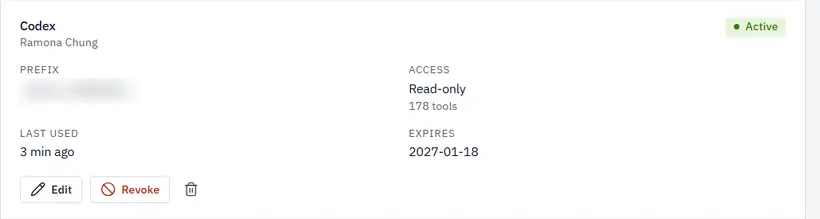
    I did not want Claude checking its own work, so I also connected OpenAI’s Codex, through an API token restricted to read-only tools. Through this connection it can inspect content and settings but cannot edit them. For my local Codex setup, I registered the WordPress connection through PowerShell using a small bridge tool called mcp-remote. The connection errors did not hold me up for long; I shared them with the AIs and they were sorted out right away.

    Easy MCP AI API tokens screen showing a token named Codex with Read-only access and Active status. The token prefix is blurred.
    The Codex token, limited to read-only tools. The prefix is blurred.

    Codex’s very first report listed four active plugins. Claude’s own check had listed three. The one Claude missed was a leftover I was not using, and I deactivated it later.

    The token I forgot to revoke

    While troubleshooting the Codex setup, I shared a screenshot of my terminal. The full Codex token was visible in it. The fix is to revoke the exposed token and issue a new one. I created a replacement token.

    Later, while gathering screenshots for this post, I opened the token list and found the old one still marked Active; creating the replacement had not revoked it. I revoked it then.

    The rules I gave the AI

    Full access meant I needed some ground rules before any real work started. These are instructions I give the assistant, separate from whatever the plugin itself enforces:

    Type of actionExampleRule
    Reversible and unpublishedSaving an unpublished draftAI does it, then reports
    PublicChanging the site header or footerAI asks first; I approve with one click
    Destructive or difficult to reversePlugin updates, permanent deletionAI asks first and explains why

    In the first sessions, Claude created the site’s three categories and drafted the About, Disclaimer, Contact, Privacy Policy, and Editorial & AI Policy pages. Those pages stayed unpublished until I reviewed them. Claude also replaced the theme’s placeholder header and footer links after I approved a preview. After that change it cleared the LiteSpeed cache and loaded the live homepage, because a change saved in WordPress is not always what visitors see.

    Plugin updates, done by hand

    Claude found three plugins with pending updates, but at the time the connection could list updates and had no tool to apply them. So I ran them myself in Dashboard › Updates, updating the MCP plugin last, since it is the connection itself. Afterwards Claude re-checked the versions and confirmed the site and the connection still worked. Installing and deleting plugins stay switched off in the plugin’s settings, and I plan to keep them that way. If you do this yourself, make sure your host has a recent backup first.

    This post went through the same process: Claude drafted it, Codex checked it, and I approved it before publishing.

    Next in this Build Log: how the two-AI pipeline works in practice when writing and fact-checking an article.

    Sources