I already pay for Claude and for ChatGPT Plus. When I started building this site, I wanted to use those subscriptions without paying separately for model API usage.
What I wanted was simpler. I wanted to keep working in the Claude app I already use and have Claude reach into the site directly, to draft pages, fix menus, and check settings, without me copying text back and forth. The piece that makes that possible is MCP, the Model Context Protocol: an open standard that lets an AI assistant call tools on another system. If a WordPress site exposes an MCP server, Claude can list posts or edit a page as a structured action.
The site at that point was a fresh install on ChemiCloud’s WordPress hosting ($77.88 for the year, on a LiteSpeed server), running the default Twenty Twenty-Five theme with nothing but sample content. I am not a developer.
The first wall: a 404 on /wp-json/
Early on, the site’s REST API address, /wp-json/, returned a 404 error. The cause was the permalink setting. WordPress still serves its REST API under Plain permalinks at a different URL, but Easy MCP AI, the plugin I ended up using, expects “pretty” permalinks (anything except Plain). I switched Settings › Permalinks to Post name, and the same address responded normally right away.
Picking and installing the plugin
I looked at three options in the WordPress plugin directory: the official MCP Adapter, AI Engine, and Easy MCP AI. I had no strong preference of my own, so I talked the choice through with the AIs and went with their recommendation. Easy MCP AI won for two practical reasons. One plugin could serve both tools I planned to use, Claude over OAuth and Codex over a token, and it provides an audit log of AI activity on the site.
I installed it through Plugins › Add New. There was no outside account to create. The plugin runs the MCP server inside WordPress, so the address Claude connects to is the site’s own:
https://yoursite.com/wp-json/easy-mcp-ai/v1/mcpIt also has a diagnostics card. The report I captured for this screenshot listed 53 checks: 48 passed, three raised warnings, and two had not run. Nothing failed.
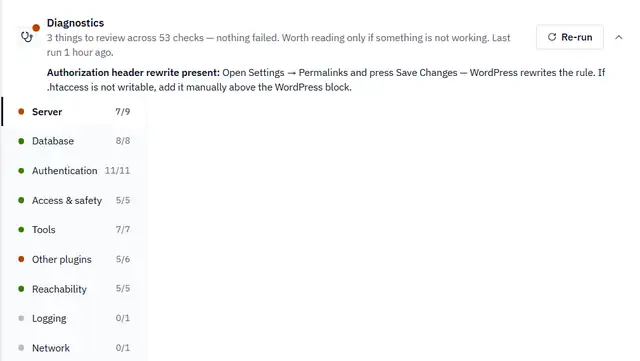
One of those warnings is still there. It says the server rule that passes the Authorization header to WordPress is missing, which can make a valid token look invalid. The plugin’s suggested fix is to re-save the permalink settings, or to add the rule to .htaccess by hand if the file is not writable. I re-saved; the warning stayed. Both AI connections still authenticate normally, so I have left it for now and will revisit it if a valid token is ever rejected.
Connecting Claude
In Claude’s connector settings I added a custom connector and pasted the site’s MCP address. (The plugin also has a one-click button that pre-fills this.) Claude detected on its own that the server uses OAuth and registered itself as a client, so I left the header fields empty, saved, and clicked Connect.
An authorization page opened on my own WordPress site, asking how much access to grant: read-only, full, or a custom set. I chose full access. Claude was going to do the building, and the site was nearly empty, so there was little to lose. The scope can be narrowed later from the same screen. There was no secret token to copy anywhere.

Worth knowing before you try this: Claude reaches the site from Anthropic’s servers, so the site has to be publicly reachable over HTTPS. A site that only runs on your laptop will not connect this way.
Adding a second AI as a reviewer
I did not want Claude checking its own work, so I also connected OpenAI’s Codex, through an API token restricted to read-only tools. Through this connection it can inspect content and settings but cannot edit them. For my local Codex setup, I registered the WordPress connection through PowerShell using a small bridge tool called mcp-remote. The connection errors did not hold me up for long; I shared them with the AIs and they were sorted out right away.
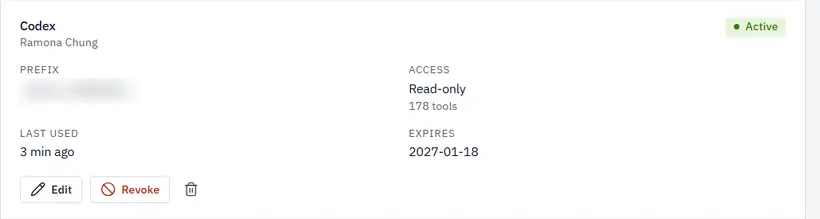
Codex’s very first report listed four active plugins. Claude’s own check had listed three. The one Claude missed was a leftover I was not using, and I deactivated it later.
The token I forgot to revoke
While troubleshooting the Codex setup, I shared a screenshot of my terminal. The full Codex token was visible in it. The fix is to revoke the exposed token and issue a new one. I created a replacement token.
Later, while gathering screenshots for this post, I opened the token list and found the old one still marked Active; creating the replacement had not revoked it. I revoked it then.
The rules I gave the AI
Full access meant I needed some ground rules before any real work started. These are instructions I give the assistant, separate from whatever the plugin itself enforces:
| Type of action | Example | Rule |
|---|---|---|
| Reversible and unpublished | Saving an unpublished draft | AI does it, then reports |
| Public | Changing the site header or footer | AI asks first; I approve with one click |
| Destructive or difficult to reverse | Plugin updates, permanent deletion | AI asks first and explains why |
In the first sessions, Claude created the site’s three categories and drafted the About, Disclaimer, Contact, Privacy Policy, and Editorial & AI Policy pages. Those pages stayed unpublished until I reviewed them. Claude also replaced the theme’s placeholder header and footer links after I approved a preview. After that change it cleared the LiteSpeed cache and loaded the live homepage, because a change saved in WordPress is not always what visitors see.
Plugin updates, done by hand
Claude found three plugins with pending updates, but at the time the connection could list updates and had no tool to apply them. So I ran them myself in Dashboard › Updates, updating the MCP plugin last, since it is the connection itself. Afterwards Claude re-checked the versions and confirmed the site and the connection still worked. Installing and deleting plugins stay switched off in the plugin’s settings, and I plan to keep them that way. If you do this yourself, make sure your host has a recent backup first.
This post went through the same process: Claude drafted it, Codex checked it, and I approved it before publishing.
Next in this Build Log: how the two-AI pipeline works in practice when writing and fact-checking an article.